Content approval is a SharePoint feature that ensures reviewers check items or documents before everyone can see them. When you turn it on, SharePoint assigns a status—such as Pending, Approved, or Rejected—to each new or updated item. Until someone approves an item, most users cannot see it, or they only see the last approved version, depending on your permission settings.
Here is a simple guide to SharePoint Online Content Approval. It inlcudes a couple of scenarios which you can use, to set up your content approval process:
How to set up content approval
- Click on the gear icon on the right hand top corner, and choose Library Settings → Versioning Settings.
- Set Require content approval for submitted items? to Yes.
- Choose how versioning should work (major versions only, or major and minor versions).
- Configure Draft Item Security to decide who can see draft or pending items (example, only authors and approvers, or a wider audience).
Open your SharePoint Online site and then go to the Document Library where you want to have content approval process for your content. Then, follow these steps:

Once content approval, you will see automatically, a new column shown in your library: Approval status.

Now, there are a few important follow-up steps to make sure it actually works the way you expect. Especially around who can approve content.
Who can approve the content?
In SharePoint, approvers aren’t added through a separate “approver” field by default. Instead, approval rights come from permissions.
Anyone with Approve permission can approve or reject content. Common approver roles:
- Site Owners (this is by default)
- Members (if they have been granted approval rights)
- A custom Approvers group (this is the recommended option. More info on creating SharePoint Online groups you may read here: Understand groups and permissions on a SharePoint site – Microsoft Support)
Even when a person has approval rights, enabling content approval does not send notifications by default. This point is important to keep in mind. After you upload a document, it moves to Pending status, and you must notify the approver manually. The status remains Pending until someone approves or rejects the document. At this point, you can consider a few different scenarios.
Stick to the default – basic scenario
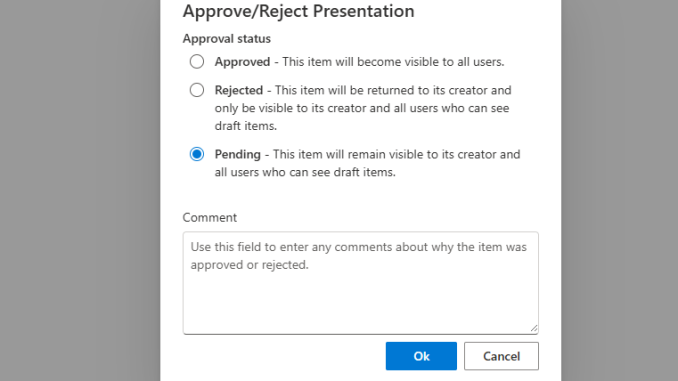
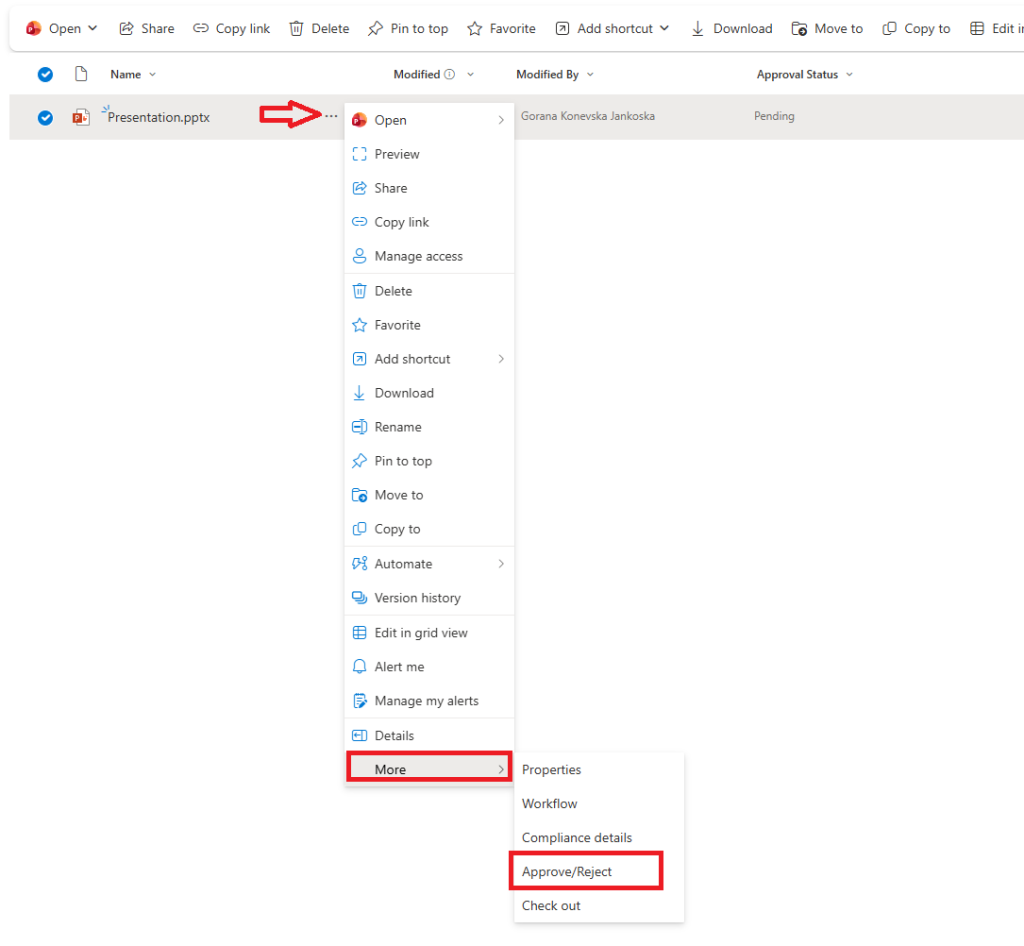
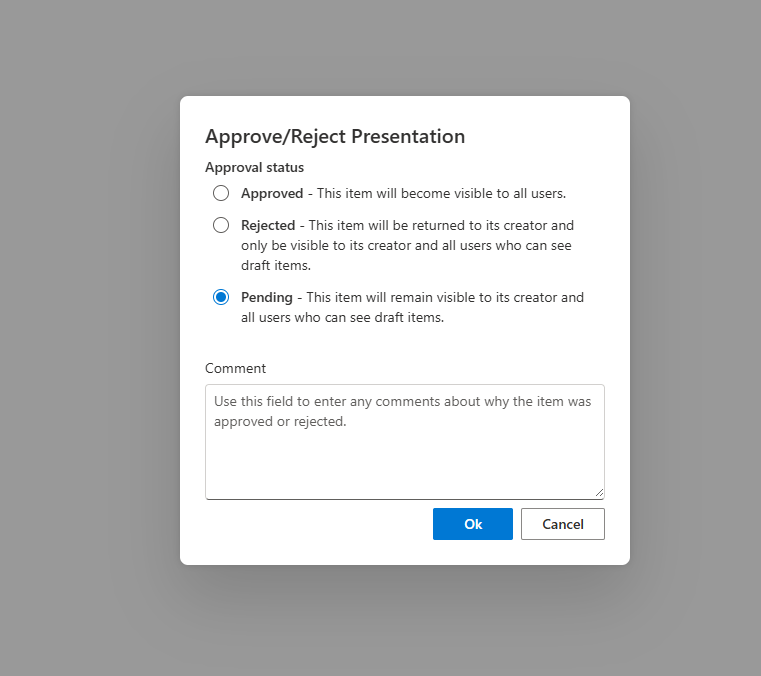
This is the basic scenario. You enable content approval, which adds a status column to the library and allows users to upload documents. After uploading a document, users must inform the approver manually. If they don’t, the system does not send any notifications. Once users notify the approver, the approver must go to the library and approve the document manually, as shown in the screenshot below.
2. PowerAutomate process for content approval
This is a much better scenario and builds on the basic scenario described above. After you enable content approval in the document library, you can create a flow that triggers a process to send a notification or email to an approver or a group of approvers. For more information and a step-by-step guide, read here:Get started with Power Automate approvals – Power Automate | Microsoft Learn
3. Work with Rules
By default, Rules cannot connect to the Approval column, but you can use the following workaround if you want to avoid using Power Automate.
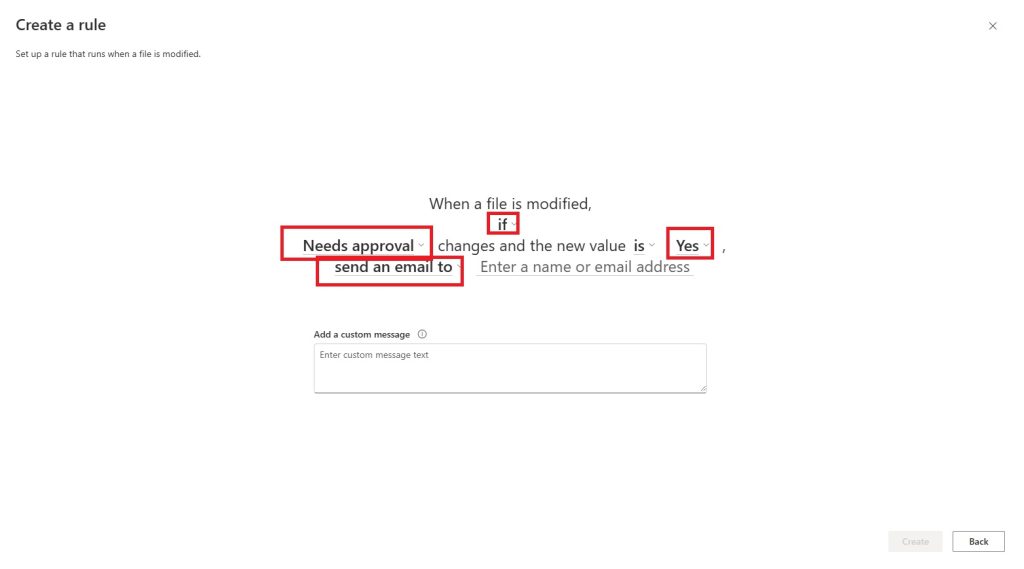
In this approach, you create the approval process from the library settings, as explained earlier in this post. Next, alongside the Approval Status column, you manually create another column named Approval needed. This column is a Choice column with Yes and No options.

Now, after the choice column is created, we need a rule which will be triggered from this column. On the three dots, click on Automate – Rules – Create a rule.
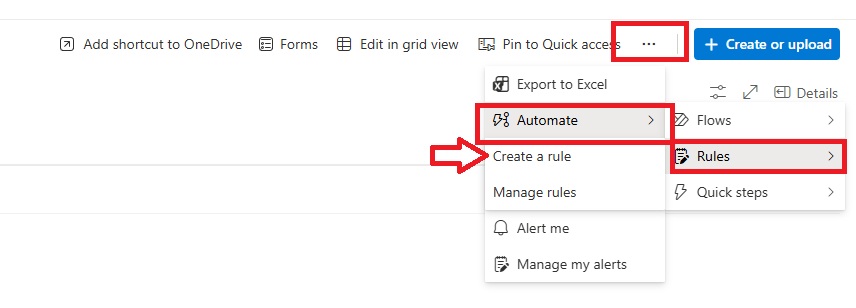
This opens a new window where you select When a file or metadata is modified. In this step, you define the rule details. Set the condition so that when Approval needed equals Yes, the rule sends an email notification. Then select one or more people who need to approve the item.
More about Rules: Managing Rules in SharePoint – Made Simple – ITuziast
Do you use approvals today? If so, what kind of scenarios do you have set up?



Be the first to comment