Recently we faced a case that perfectly illustrates the confusion around the hidden permission trap in Teams-connected SPO sites. Working with Team-connected SPO sites can seem straightforward at first, but even simple permission changes can be tricky to get right.
Case scenario: using SPO Groups on Teams-connected SPO team sites
There was a Team in Teams created, and a Teams owner wanted to grant access to some users only the SharePoint site, not the Team itself. The Team needed to remain private, while a large number of users required contributor access to the Teams-connected SPO team site. To keep things manageable, the owners decided to use a SharePoint group.
The Team Owners opened the Teams-connected SharePoint team site, navigated to Settings → Permissions → Advanced permissions. Here they created a new SharePoint group (Contributors), and added users who were not members of the Team.

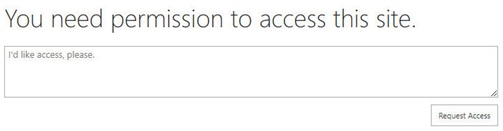
The users received an email invitation to collaborate on the site. When they clicked the link, they were met with Access Denied – You do not have permissions for this site.
Yes, this is the hidden permission trap in Teams-connected SPO sites.
Why SharePoint groups don’t work on Teams-connected sites?
Permissions were assigned, the invitation was sent, yet access still failed. Let’s see why this happened:
When you work with SharePoint, you have different types of sites: team sites, Teams-connected sites, and communication sites. When managing permissions, you probably already know the default SharePoint Online groups: Owners, Members, and Visitors.
If you need to give different people different levels of access, you can create additional SharePoint Online groups and assign permissions directly (Microsoft has a good overview in Understand groups and permissions on a SharePoint site).
Here’s something extremely important that some users have learned the hard way: SharePoint groups don’t work the same way across all site types. This difference becomes especially critical on Teams-connected SharePoint sites. On Teams-connected SPO team sites, the SPO groups no longer fully control permissions. Microsoft Teams does not use SharePoint groups to manage access; it relies entirely on Microsoft 365 Group membership. As a result, if you add or remove users directly in SharePoint, Teams may ignore those changes, which can create inconsistent or seemingly broken permissions.
For Team-connected sites, always manage users through Microsoft Teams or the Microsoft 365 Group. SharePoint groups still appear on the site to keep it working normally, but they no control access. The system automatically updates them based on who is in the Team or who receives access through site-level system groups or direct permissions. Manually creating these groups usually has no effect.
Summary:
- The Microsoft 365 Group is the primary authority for access.
- SharePoint groups play a secondary role.
- Directly modifying SharePoint groups often creates confusion.
When permissions are managed in the correct place, access remains consistent and predictable.
Further info on different sites (root site or Hub site): SharePoint Online: Root site, Home site and Hub site – Explained – ITuziast



Be the first to comment