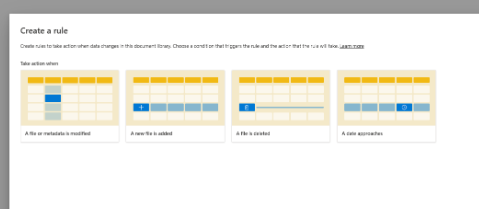
Creating and managing rules in a SharePoint site is a handy way to automate tasks and keep things organized—especially when you’re dealing with documents, lists, or libraries. Whether it’s sending alerts or triggering actions, SharePoint gives you built-in options to set these up quickly. Unfortunately, the alerts are going away next year in July 2026, but here are the Rules, which I personally find awesome! We use it in our team, to manage and follow the work in progress, so if you still haven’t tried, let’s go step by step:
How to Create a Rule:
- Head over to your list or document library.
- Click “Automate” in the top bar.
- Choose “Create a rule.”
You’ll see a few trigger options like:
- When a file is created
- When a file is changed
- When a column value is updated
- When someone else updates an item
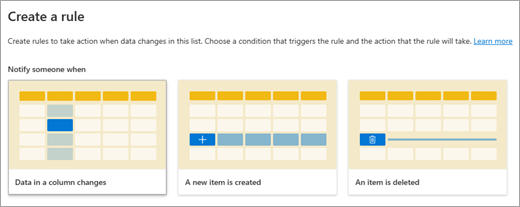
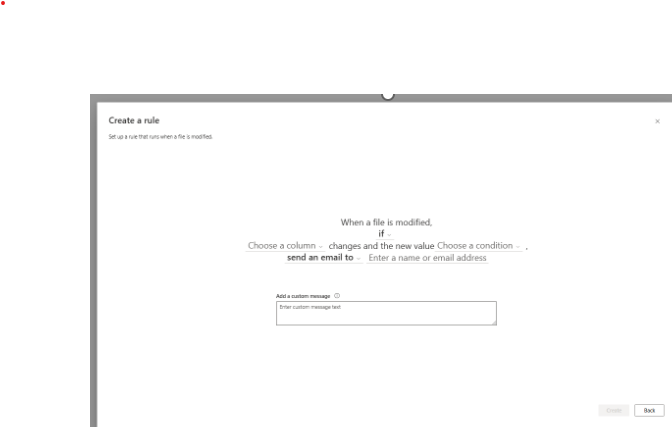
Just pick your trigger, choose a condition if needed, set who should get notified (for email alerts), and hit Create.
Pro Tips for Smarter Rules
As your lists grow and you add more columns, your rule options will grow too. Here are a few things to keep in mind to avoid rule chaos and to successfully manage your rules:
1. Know What You Want the Rule to Do
Don’t just create alerts for the sake of it. Make sure the rule serves a real purpose.
Example: Send an email to the manager when someone submits a leave request.
2. Be Specific
Use filters so you’re not triggering alerts all the time.
Example: Only notify when the status changes to “Approved”.
Trigger: Item modified
Condition: Status = “Approved”
Action: Email the person who submitted the request
3. Avoid Duplicates
If you’re already using Power Automate for something, don’t double up with a SharePoint rule. Keep your automation logic in one place.
4. Narrow the Focus
Don’t apply rules to the whole list if only a folder or certain item types need them.
Example: Only trigger a rule for files in the /Invoices folder and when Status = Pending.
5. Review and Clean Up
Take time every few months to check your rules. Delete outdated ones, update contacts, and make sure everything still makes sense.
Set a calendar reminder every quarter to:
- Review active rules
- Delete ones you don’t need
- Update rule owners or contacts
Wrapping It Up
The key to good SharePoint rules? Managing rules should include: keep them clear, useful, and well-maintained. Define what you want each rule to do, avoid overlap, and use tools like Power Automate when things get complex.
A little effort upfront will save you a lot of time (and confusion) later!


Be the first to comment