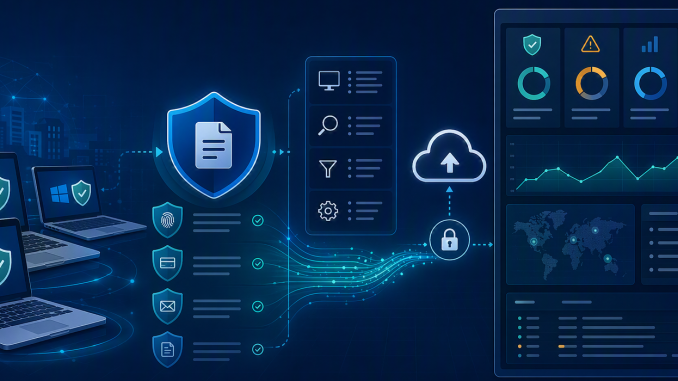
Microsoft’s Zero Trust guidance positions Endpoint DLP as part of an information protection strategy where organizations understand their data. Base on that, they define a sensitivity schema and apply it. As a result, they extend protection to devices using Microsoft Purview DLP policies. The same guidance emphasizes working with the data security and privacy teams to enable devices, test and tune policies, train users, and monitor results.
The focus in this article, is not on designing DLP policy rules from scratch. It is about making it operationally supportable when policies do not behave as expected on managed devices.
Why Endpoint DLP troubleshooting is different from cloud-only DLP?
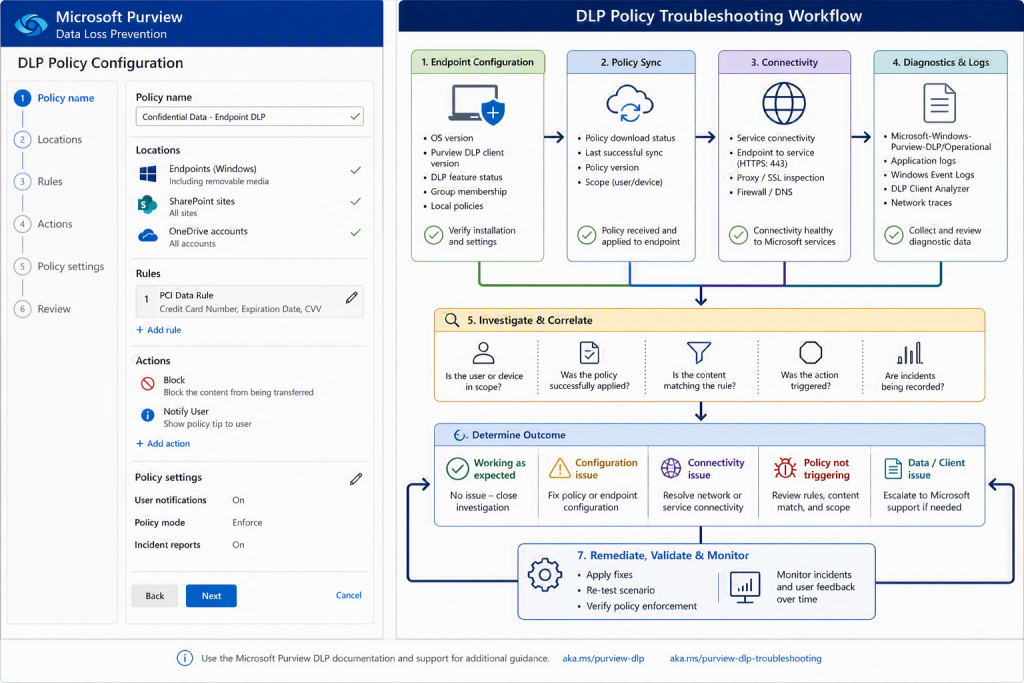
Cloud DLP troubleshooting typically begins with service-side evidence, such as policy configuration, audit events, and activity across Exchange, SharePoint, OneDrive, and Teams. Endpoint DLP troubleshooting adds a device execution layer.
A policy works as expected when it reaches the device, the device uses the correct configuration, user and device targeting match the intended scope, and the endpoint can communicate with Microsoft cloud services. Once on-boarded, user activity with sensitive items becomes visible in Activity Explorer, and DLP policies can enforce protective actions on those items.
That endpoint layer is exactly why diagnostics matter. If an in-scope user performs an action and the policy does not behave as expected, administrators need evidence from the device side (not just a screenshot), a user report, or a policy export. Always-on diagnostics helps by making trace data available for authorized Endpoint DLP troubleshooting scenarios.
Pattern:
Troubleshoot Endpoint DLP from both sides: policy intent in Purview and device readiness on the endpoint.
Do not assume a policy issue is always a rule-design problem. Factors such as endpoint readiness, connectivity, and policy sync state can be part of the failure path.
What does always-on diagnostic actually do?
Always-on diagnostics provides continuous, automated trace logging for Endpoint DLP. First, this reduces administrative overhead because administrators no longer need to manually configure logs or reproduce an issue after it occurs. Second, when required, diagnostic logs can be securely uploaded directly to Microsoft Support.
Always-on diagnostics is enabled on on-boarded Windows devices, including servers. If Endpoint DLP does not behave as expected, the customer opens a Microsoft support case, Support requests diagnostic traces, and the administrator collects them using the documented procedure.
Pattern:
Use Always-on Diagnostics for policy behavior troubleshooting, support cases, and root-cause analysis.
Do not repurpose always-on diagnostics as a general investigation or user-monitoring mechanism. It is to be used as support-only for Endpoint DLP troubleshooting.
Security, privacy, and access model
The diagnostic log security model is intentionally restrictive. Microsoft Learn states that administrators cannot directly download logs. Microsoft stores them in a proprietary internal format, decodes them only with Microsoft tools, and limits access to Microsoft personnel in designated access groups.
Microsoft-managed Azure Blob Storage stores the logs and keeps them within the tenant’s data residency region. The system retains logs for 180 days unless an administrator deletes them earlier. After the retention period, the system purges them automatically, and users cannot recover them.
Role assignment is also important. Both Microsoft Entra ID and Purview tenant-level roles that can enable the feature or create and view collection requests. It also reinforces Microsoft’s guidance to use the least-privileged role required for the task and to minimize routine Global Administrator usage.
This approach aligns with the least-privilege posture in the internal Zero Trust material, which treats logs, monitoring, and investigation capabilities as security-sensitive operational assets.
Pattern:
Assign diagnostic permissions deliberately: use the least-privileged role that can perform the task, and avoid making Global Administrator the default support role.”
Relationship with device health, policy sync and Endpoint DLP settings
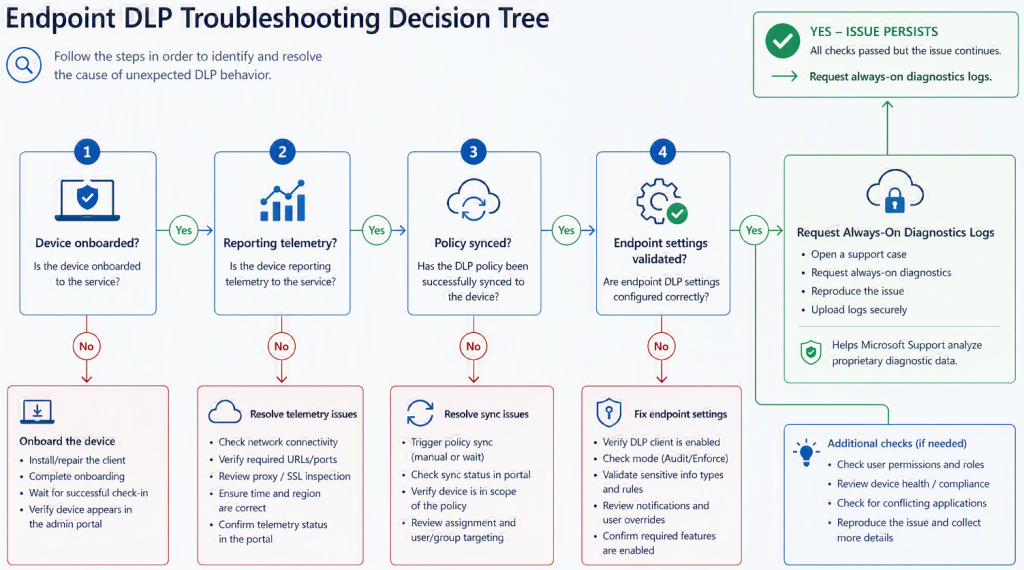
Always-on diagnostics should complement (not replace) Endpoint DLP monitoring. Use the device health dashboard to check on-boarding, policy update readiness, and feature readiness. Use both configuration and policy sync views to confirm that the device has the correct configuration, sends heartbeat data, and receives the latest policy. The device must be online to get updates. Include endpoint settings in the baseline: cloud egress controls, application restrictions, file path exclusions, browser and domain restrictions, business justifications, and automatic auditing for Office, PDF, and CSV actions.
Pattern:
Check device health and policy sync status, before escalating to diagnostics. Use always-on diagnostics when the device is ready but behavior still needs deeper support analysis.
Do not skip basic readiness checks! Diagnostics will not fix an offline device, missing telemetry, or policy sync issues.
Common pitfalls and remediation patterns
- Requesting diagnostics too early: Confirm that the device has completed on-boarding and actively reports before you enable always-on diagnostics. Validate on-boarding and device readiness with the Endpoint DLP getting-started guidance and the device health dashboard first, then request diagnostics only when the endpoint reaches a valid troubleshooting state.
- Treating logs as downloadable evidence: Diagnostic logs are not available for direct administrator download and are stored in a proprietary Microsoft-internal format. Use them as part of the Microsoft Support workflow, not as a local forensic package.
- Ignoring network prerequisites: Always-on diagnostics requires continuous connectivity to Microsoft upload endpoints, including *.blob.core.windows.net. Ensure firewalls, proxies, and security policies do not block or modify outbound HTTPS traffic required for diagnostic uploads.
Conclusion
Endpoint DLP always-on diagnostics improves support operations for Microsoft Purview, by replacing manual log setup and issue reproduction with telemetry ready for Microsoft Support. It works best within a disciplined operating model: on-boarding, device health monitoring, policy sync validation, least-privilege access, and clear support hand-off. Treat it as part of the policy lifecycle alongside testing, tuning, monitoring, and user education.
Additional information
- Learn about Data Loss Prevention (DLP)
- Create and deploy a DLP policy
- Learn about Endpoint Data Loss Prevention (DLP)
- Get started with Endpoint DLP
- Configure endpoint DLP settings
- Monitor Endpoint DLP device health
- Always-on diagnostics for endpoint DLP
- Troubleshooting Endpoint DLP configuration and policy sync
- Configure device proxy and internet connection settings for Endpoint DLP



Be the first to comment